CoreviaFlowCOREVIAFLOWDIGITAL PROJECT COMPANY Leave a request
EN UA RU
Automation & workspaceUS

Outlook / Microsoft 365 integration & automation

Client letters from Outlook land in the CRM deal card, meetings from the Outlook calendar appear in the CRM, and replies go out from the manager's own address.

Outlook is the mailbox and calendar of most companies that run on Microsoft 365: letters, meetings, contacts and Teams calls all live there. The trouble starts when the CRM lives apart from it — a manager answers a client from Outlook, the deal card stays empty, and the meeting booked in the Outlook calendar never shows up in the pipeline. We connect Outlook to the client's CRM through the official Microsoft 365 interface: a letter from a known address goes into that contact's deal, a letter from an unknown address becomes a new lead, a reply written in the CRM goes out from the manager's own Outlook address in the same conversation, and a meeting created in the CRM appears in the Outlook calendar of the people invited. The connection works with the mailboxes whose owners granted access, or, by the decision of the company's administrator, with shared mailboxes without a signed-in person.

What we connect

  • We agree which mailboxes and calendars take part: each manager's own mailbox, a shared requests mailbox such as sales@, or both — and who in the company administers Microsoft 365.
  • The company's administrator registers the connection in Microsoft 365 and grants it only what the job needs: read mail, send mail, read and write the calendar. For personal mailboxes each owner signs in with a Microsoft account and confirms the access; for a shared mailbox the administrator grants it once.
  • We map the letters to the CRM: which CRM it is, how a sender is matched to a contact, which pipeline a letter from an unknown address goes to, and which senders to ignore — newsletters, system notifications, internal mail.
  • We turn on Microsoft's notifications about changes in the mailbox and the calendar, so a new letter or a new meeting reaches the CRM within seconds; the connection renews these notifications itself before they expire and keeps a scheduled check as a safety net.
  • We link the calendar: a meeting created in the CRM appears in the Outlook calendar of the manager and the invited people, and a meeting moved in Outlook updates the date in the deal.
  • We test on real letters: a request from the website, a client reply, a meeting invitation — and check that each ends up in the right deal and that the reply from the CRM lands in the client's thread as an ordinary letter from the manager.

Automation scenarios

01

Requests from sales@ stop getting lost

Before the website form writes to a shared Outlook mailbox; three people read it, each thinks a colleague took the letter, and the request waits for days.

After every letter from the form becomes a lead in the CRM with the sender's name, address and the text of the request, gets an owner by the CRM's rules, and the letter in Outlook is moved to the 'in CRM' folder.

02

The whole conversation lives in the deal card

Before the client replies to a manager's letter; the reply stays in that manager's Outlook, and the deal card in the CRM says nothing about it.

After a letter from a known address is attached to the deal of that contact, and the manager answers straight from the CRM — the letter goes out from his own Outlook address in the same conversation, so the client sees an ordinary reply.

03

A meeting booked in the CRM is in everyone's Outlook calendar

Before the manager agrees a demo in the CRM, then creates the meeting in Outlook by hand, forgets to invite the engineer, and the client gets no invitation.

After the meeting created in the deal appears in the Outlook calendar of the manager, the engineer and the client with the link to the Teams call; if the date is moved in Outlook, the deal shows the new date.

04

An AI assistant prepares the reply, the manager sends it

Before a manager spends the morning answering the same questions about delivery, terms and documents.

After the assistant reads the incoming letter, pulls the deal data from the CRM and saves a reply as a draft in the manager's Outlook; the manager reads it, edits what he wants and presses Send. Nothing leaves the mailbox without a person.


How it works technically

For those who want to check: each point links to the official documentation page it comes from.

  • Outlook is the messaging hub of Microsoft 365: besides mail it holds contacts, meeting scheduling and information about people in the organisation — and one connection built through Microsoft's interface works with all of it.

    Source: learn.microsoft.com ↗ checked 2026-09-28
  • Microsoft lets an application put its own data, such as a deal number, into the hidden headers of a letter when creating or sending it — so a reply from the client can be matched to the deal without guessing.

    Source: learn.microsoft.com ↗ checked 2026-09-28
  • The Outlook calendar is available through the same interface, and Microsoft keeps it close to what a person sees: an application creates, changes and responds to meetings the same way a user does in Outlook.

    Source: learn.microsoft.com ↗ checked 2026-09-28
  • Microsoft 365 can notify the connected application itself when a letter or a meeting is created, changed or deleted — Microsoft offers this instead of checking the mailbox on a schedule.

    Source: learn.microsoft.com ↗ checked 2026-09-28
  • There are two kinds of access: on behalf of a signed-in employee, where the application sees only what that person sees, and on behalf of the company without a signed-in person — the second is granted by the administrator and Microsoft recommends the first whenever it is enough.

    Source: learn.microsoft.com ↗ checked 2026-09-28

Limits

Microsoft limits how many requests a connection may make to one mailbox in a ten-minute window and how many may run at the same time; when the limit is hit the request is refused and repeated after a pause, so bulk work such as importing an archive is done in small groups. The limit is counted per mailbox, so a busy mailbox does not slow down the others. The subscription to notifications about changes has a limited lifetime and must be renewed before it expires, and there is a cap on how many active subscriptions one mailbox may have across all applications; the connection renews its own subscriptions and keeps a scheduled check as a backup. Access on behalf of the company without a signed-in person is a privileged kind of access: it is granted only by the company's administrator and we ask for it only when a shared mailbox or a background task really needs it. Access on behalf of an employee never shows more than that employee could see in Outlook.

Screenshots

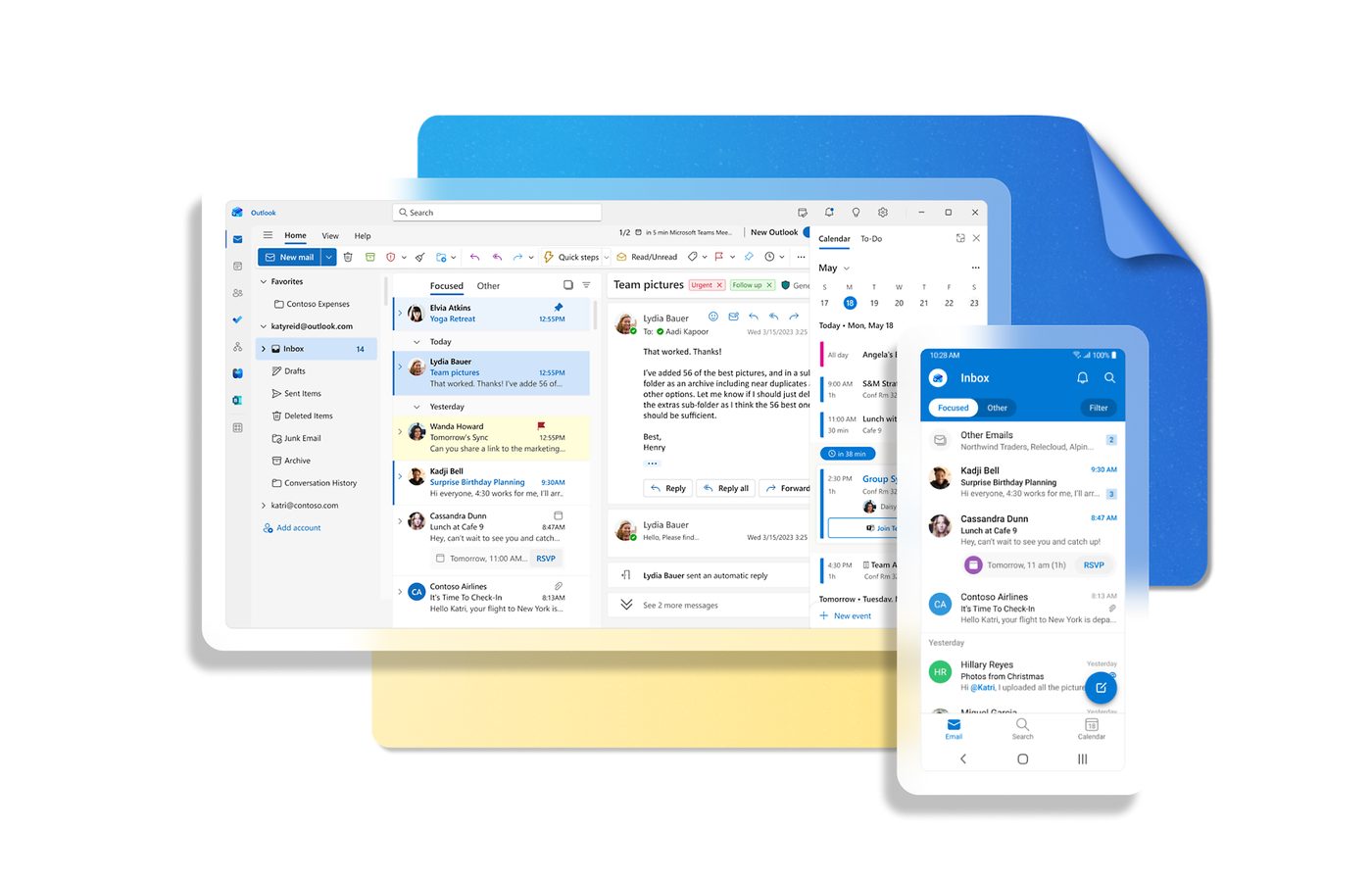
Outlook inbox on desktop and phone
Client letters from this inbox land in the deal card in the CRM. Source: www.microsoft.com ↗
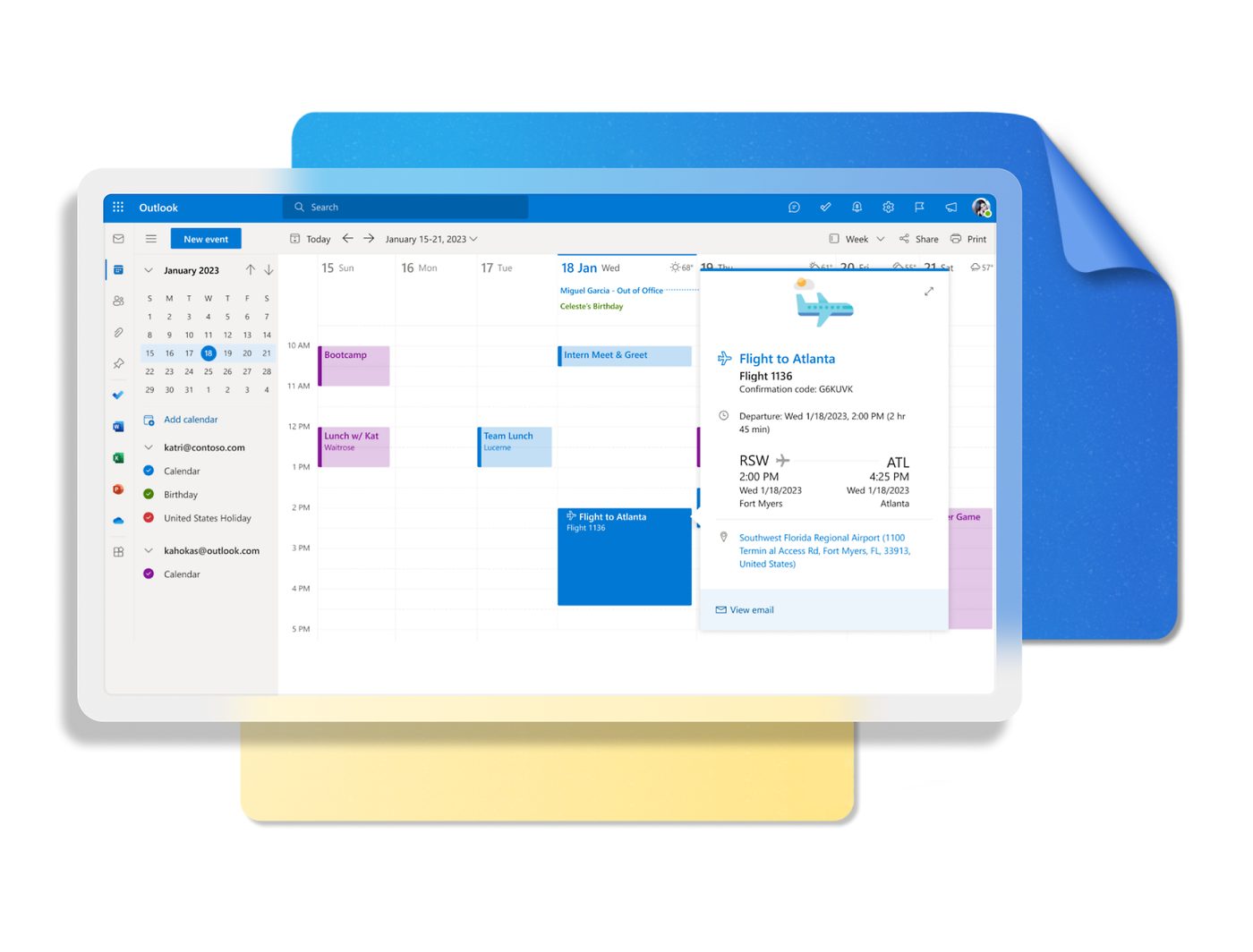
Outlook calendar with meetings for the week
Meetings from the calendar appear next to the deal, and a call booked in the CRM shows up here. Source: www.microsoft.com ↗
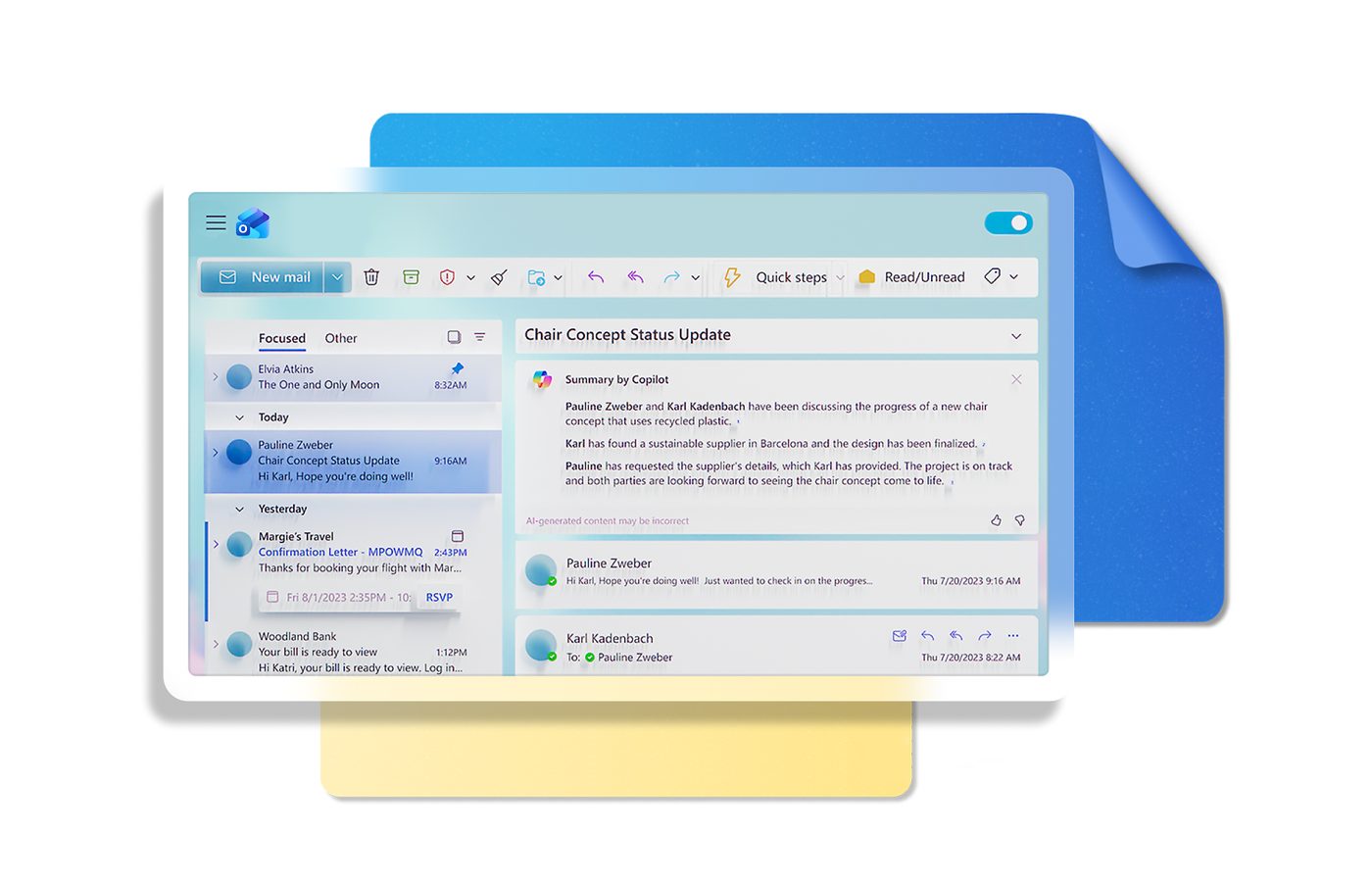
Outlook letter summary panel
The manager replies from their own address, and the reply is saved in the client's history. Source: www.microsoft.com ↗

How to start

Three steps from a first message to work on your project.

  1. 01

    Leave a request

    Describe the task in the form — in text or by voice. Budget and timing are optional.

  2. 02

    We review and estimate

    A developer studies the brief, asks about anything unclear and sends an estimate.

  3. 03

    We start

    Once scope and price are agreed, the work begins.

or write to info@coreviaflow.space

Questions

Do we need to give you the passwords to our mailboxes?
No. Each mailbox owner signs in with his own Microsoft account and confirms the access for the connection; the password stays with him. For a shared mailbox the company's administrator grants the access once in Microsoft 365. The access can be taken away at any moment from the same place, without changing any passwords.
Will the client see a reply from my address or from a technical one?
From your own address. A reply written in the CRM is sent through your Outlook, ends up in your Sent Items and continues the same conversation with the client. If the reply should go from a shared address such as sales@, we set that up separately.
We have personal Outlook.com mailboxes, not a company Microsoft 365. Does it work?
Yes for mail and calendar: Microsoft's interface works with both personal Microsoft accounts and work accounts. What changes is the access: with personal mailboxes there is no company administrator, so each owner confirms the access himself, and shared mailboxes without a signed-in person are not available.
Will old letters be imported into the CRM?
If you want. By default the connection starts with letters that arrive after it is switched on. An archive can be imported for chosen contacts or a chosen period; because Microsoft limits how fast one mailbox can be read, a large archive is imported in groups over several hours rather than at once.

Tell us what needs to be connected

Describe the task in text or a voice message. We look at your setup and reply with a plan.