CoreviaFlowCOREVIAFLOWDIGITAL PROJECT COMPANY Leave a request
EN UA RU
Automation & workspaceUS

Gmail integration & automation

Client emails land in the CRM deal card, replies go out from the manager's own address, and the AI prepares a draft — without sending it.

Gmail is the mailbox where most requests actually arrive: forms from the website, replies from clients, quotes from suppliers. The trouble is that the mailbox and the CRM live apart — a manager reads a letter, forgets to put it into the deal, and a week later nobody remembers what the client asked. We connect the mailbox to the client's CRM: a letter from a known address goes into that contact's deal card, a letter from an unknown address becomes a new lead, and the reply written in the CRM goes out from the manager's own Gmail address in the same conversation thread. An AI assistant can read the letter and prepare a reply as a draft in Gmail; a person checks it and presses Send. The connection works only with the mailboxes whose owners granted access to it.

What we connect

  • We agree which mailboxes take part: a shared requests mailbox (for example, the one the website form writes to), each manager's own mailbox, or both.
  • The owner of each mailbox signs in with Google and grants the connection access — only to what the job needs: read incoming mail, create drafts, send replies, manage labels.
  • We map the letters to the CRM: which CRM it is, how a sender is matched to a contact, which pipeline a letter from an unknown address goes to, and which addresses to ignore (newsletters, notifications).
  • We set up Gmail labels: a letter the connection has processed gets a label, so the team sees right in the mailbox what is already in the CRM and what is waiting.
  • We turn on Google's notifications about mailbox changes so a new letter reaches the CRM within seconds, and add a scheduled check of the change history as a safety net in case a notification is delayed.
  • If the AI assistant is part of the job, we agree on its rules: tone, signature, what it may promise and what it must never write; it produces drafts in Gmail, nothing more.
  • We test on a few live letters — a website request, a reply from a client, a letter from a stranger — check where each one landed in the CRM, and hand the team a one-page guide.

Automation scenarios

01

Website requests stop getting lost in the inbox

Before the website form writes to a shared mailbox; three people read it, each thinks a colleague took the letter, and the request sits unanswered.

After every letter from the form becomes a lead in the CRM with the sender's name, address and the text of the request, gets an owner by the CRM's rules, and the letter in Gmail is marked with an 'in CRM' label.

02

The whole conversation lives in the deal card

Before the client replies to a manager's letter; the reply stays in that manager's mailbox, and the deal card in the CRM says nothing about it.

After a letter from a known address is attached to the deal of that contact, and the manager answers straight from the CRM — the letter goes out from his own Gmail address and lands in the same thread, so the client sees an ordinary reply.

03

The AI writes the draft, the person presses Send

Before a manager spends the first hour of the day typing the same answers — 'yes, in stock', 'the price list is attached', 'we deliver to your city'.

After the AI reads the incoming letter and the deal history, prepares a reply as a draft in the manager's Gmail; the manager opens Drafts, fixes a couple of words and sends. Nothing leaves the mailbox without a person.

04

A stranger writes — a lead appears

Before a letter from a new company sits among newsletters and notifications, and whether it becomes a client depends on who noticed it.

After a letter from an address that is not in the CRM creates a lead in the chosen pipeline; the letter text goes into the lead's notes, and newsletters and automatic notifications are filtered out by the rules we agreed at setup.


How it works technically

For those who want to check: each point links to the official documentation page it comes from.

  • Gmail can notify the connected application itself whenever a mailbox changes — Google offers this as the way to learn about new letters without checking the mailbox on a schedule.

    Source: developers.google.com ↗ checked 2026-09-27
  • Replies and the original letter are grouped into one conversation thread, so the whole exchange on a deal can be read in order.

    Source: developers.google.com ↗ checked 2026-09-27
  • A draft in Gmail is an unsent letter with the system label DRAFT; when it is sent, the draft disappears and a letter with the label SENT appears — this is how the AI draft waits for the manager.

    Source: developers.google.com ↗ checked 2026-09-27
  • A Gmail user can grant access to his mailbox to another user within the same Google Workspace organisation; the delegate can read, send and delete letters on his behalf.

    Source: developers.google.com ↗ checked 2026-09-27
  • Google recommends requesting the narrowest set of permissions possible and not asking for access the application does not need.

    Source: developers.google.com ↗ checked 2026-09-27
  • Once a letter is created in Gmail it cannot be changed — the connection stores letters as they are and writes a copy into the CRM.

    Source: developers.google.com ↗ checked 2026-09-27

Limits

Google measures the load on Gmail in its own units and limits how many a project may spend per minute and how many a single user may spend; when the limit is hit the request is refused and repeated after a pause, so bulk work is done in small groups. One letter may have at most 500 recipients. The subscription to notifications about mailbox changes must be renewed at least once every seven days; Google itself says notifications may in rare cases be delayed or lost, so a scheduled check of the change history is always kept as a backup, and the history is usually available for about a week. An application that reads and sends mail must pass Google's verification, and if the letters are stored on the application's servers a separate security assessment is required — we take this into account when planning the setup. The connection works only with mailboxes whose owners have granted access; nobody else's mail is visible. A letter once created cannot be changed.

Screenshots

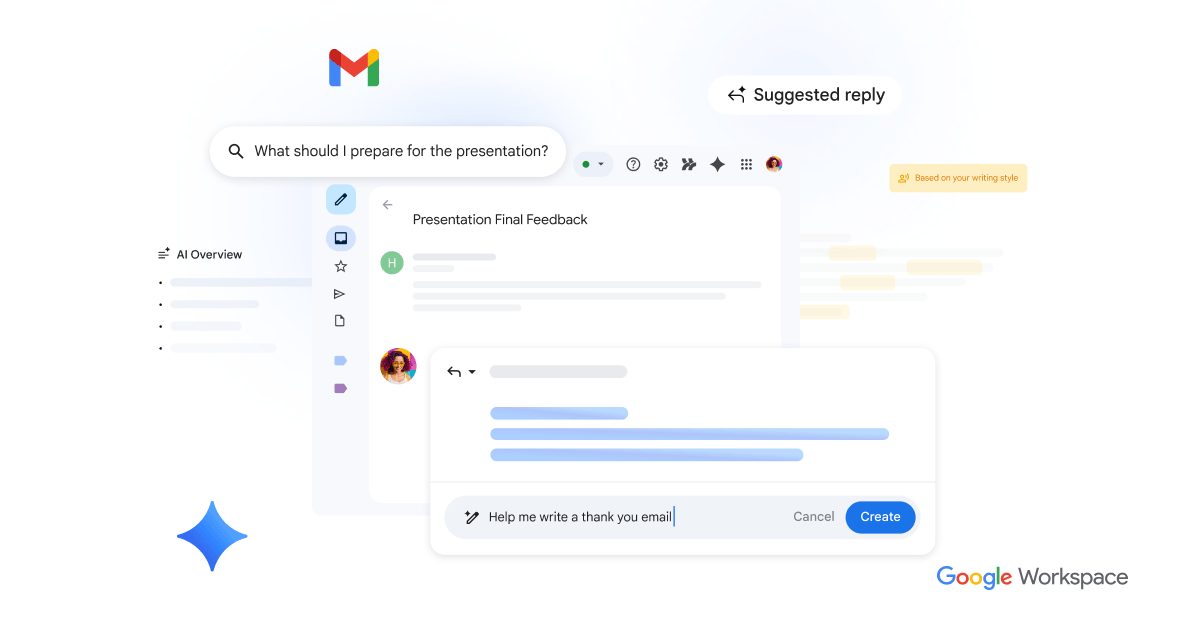
Gmail window with an open letter, a «Suggested reply» panel and the «Help me write» box — the assistant prepares the reply text, the person presses Create
A reply is drafted, not sent Source: workspace.google.com ↗
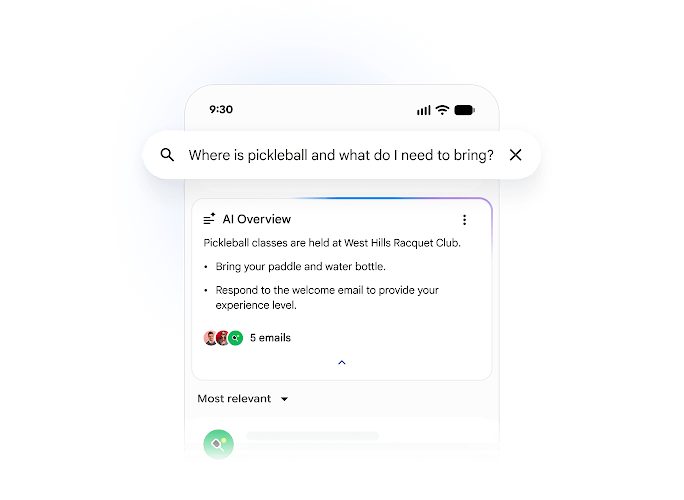
Gmail on a phone: a question typed into search and an «AI Overview» card that sums up five letters into a short answer with a list of what to do
Five letters, one answer Source: workspace.google.com ↗

How to start

Three steps from a first message to work on your project.

  1. 01

    Leave a request

    Describe the task in the form — in text or by voice. Budget and timing are optional.

  2. 02

    We review and estimate

    A developer studies the brief, asks about anything unclear and sends an estimate.

  3. 03

    We start

    Once scope and price are agreed, the work begins.

or write to info@coreviaflow.space

Questions

Does the AI send letters to clients by itself?
No. The assistant prepares a reply and saves it as a draft in the manager's Gmail. The manager reads it, edits what he wants and sends it himself. If the team later decides to let some kinds of replies go out automatically, that is a separate decision with its own rules — by default nothing leaves the mailbox without a person.
Will the client see a reply from my address or from some technical one?
From your own address. A reply written in the CRM is sent through your Gmail, ends up in your Sent folder and continues the same conversation thread with the client. If your mailbox has several sending addresses set up in Gmail (for example, a personal one and sales@), we choose which one the CRM uses.
Do we need Google Workspace, or is an ordinary Gmail enough?
The connection works with any Gmail mailbox whose owner signs in and grants access. A shared mailbox that several employees read on behalf of one account is a Google Workspace feature and works within one organisation. If the company uses ordinary Gmail accounts, each mailbox is connected by its owner separately.
What is this 'Google verification' and does it hold us up?
Google checks applications that ask for access to a user's mail; until the check is passed, the sign-in screen shows a warning that the application is unverified. We decide at the start which way to go: run the connection inside the client's own Google project, where only his own employees see the screen, or take the application through Google's check. Which of the two fits depends on how many mailboxes take part and where the letters are stored.

Tell us what needs to be connected

Describe the task in text or a voice message. We look at your setup and reply with a plan.

Pairs with Gmail

Related integrations

Implementation · Development · Integrations →

Gmail is a trademark of its owner. CoreviaFlow is not affiliated with it unless stated otherwise. Screenshots are taken from public vendor materials; the source is shown under each one.