CoreviaFlowCOREVIAFLOWDIGITAL PROJECT COMPANY Leave a request
EN UA RU
Automation & workspaceUS

Microsoft Excel integration & automation

Deals, payments and stock from the CRM land in the Excel workbook your team already lives in, and rows added in Excel come back into the CRM.

Half of the companies we meet keep the real numbers in Excel: a price list the owner edits by hand, a payment log the accountant trusts more than any system, a weekly report the director wants as a workbook. We do not fight that. The connection keeps the workbook in OneDrive or SharePoint in step with the CRM: a closed deal becomes a row, a changed price in the sheet updates the product in the CRM, and the report the director opens on Monday is already filled in.

What we connect

  • We agree which workbooks take part and what each of them is for: the price list, the payment log, the weekly report, the stock sheet. One workbook is one job — a sheet that does three things at once is the first thing that breaks.
  • The workbooks move to OneDrive or SharePoint if they are not there yet, and we check they are saved in the modern .xlsx format. Files on a manager's local disk or in the old .xls format cannot be reached by the connection.
  • Your Microsoft 365 administrator grants the connection access to exactly those folders — not to the whole company drive. The access is visible in the Microsoft admin centre and can be revoked there at any moment.
  • We map columns to CRM fields together with the person who owns the sheet: which column is the client, which is the amount, which is the date, what a row with an empty status means. Formulas and formatting stay yours — the connection touches only the data cells we agreed on.
  • We decide the direction for each workbook: the CRM writes into the report and nobody edits it by hand; the price list is edited by hand and the CRM only reads it; the payment log goes both ways with a clear rule for who wins when the same row changed in both places.
  • We run the connection on a copy of the workbook first, compare the result row by row with what the accountant expects, and only then switch it to the live file. The team keeps opening Excel exactly as before.

Automation scenarios

01

The Monday report fills itself

Before every Friday the sales lead spends two hours copying deals from the CRM into the director's workbook, and the numbers are already stale by Monday.

After the CRM writes every closed deal, its amount and its manager into the report sheet as it happens; the formulas and charts on the summary tab work on live rows, and Friday evening belongs to the sales lead again.

02

The price list lives in Excel, the CRM follows it

Before the owner updates prices in a workbook, then someone retypes them into the CRM, and for a week managers quote from two different lists.

After the owner keeps editing the same workbook; the connection reads the changed rows and updates the products in the CRM, so every new quote uses today's price and nobody retypes anything.

03

The payment log matches the deals

Before the accountant records incoming payments in a workbook, the manager marks deals as paid in the CRM from memory, and at month end the two lists disagree.

After a payment row entered in the workbook finds its deal in the CRM by invoice number and marks it paid; a deal marked paid in the CRM appears in the log with the date and amount, and the month closes without a reconciliation evening.

04

Stock from the warehouse sheet shows in the deal

Before the warehouse keeps stock in a workbook, and a manager promises a client goods that were sold yesterday.

After the connection reads the stock sheet several times an hour and shows the current quantity next to the product in the CRM; when stock hits zero the product is hidden from new quotes until the warehouse updates the row.

How it works technically

For those who want to check: each point links to the official documentation page it comes from.

  • Microsoft's own interface lets an application read and change Excel workbooks that are stored in OneDrive or SharePoint — the same files people open in Excel on their desktop.

    Source: learn.microsoft.com ↗ checked 2026-09-28
  • Microsoft describes Excel as a data store inside Microsoft 365: whatever is in a workbook is available to any application connected to Microsoft 365, and such applications can use Excel to keep their data.

    Source: learn.microsoft.com ↗ checked 2026-09-28
  • The connection works with the parts of a workbook people actually use — tables, ranges of cells and charts — and can create, read, update and delete them.

    Source: learn.microsoft.com ↗ checked 2026-09-28
  • When an application makes more than one or two changes to a workbook, Microsoft recommends opening a working session with it; in a persistent session every change is saved into the workbook itself, and this is the most efficient way to work.

    Source: learn.microsoft.com ↗ checked 2026-09-28
  • There is also a draft mode: changes are not written to the original file but kept in a temporary copy on Microsoft's side until the session ends — useful for 'what if' calculations that must not touch the real workbook.

    Source: learn.microsoft.com ↗ checked 2026-09-28

Limits

The connection reads only workbooks in the modern .xlsx format; old .xls files are not supported and have to be re-saved first. The workbook must live in OneDrive or SharePoint — a file on a manager's local disk or on a shared network folder is out of reach, so that is the first question we ask. Every operation opens a working session with the workbook; in the draft mode the changes are lost when the session expires, which is why we use it only for calculations and never for the payment log. Working without a session is possible but slow, so bulk imports are done in batches inside one session. Excel is a file, not a database: two people editing the same row at the same moment is resolved by the rule we agree during setup, not by Excel.

Screenshots

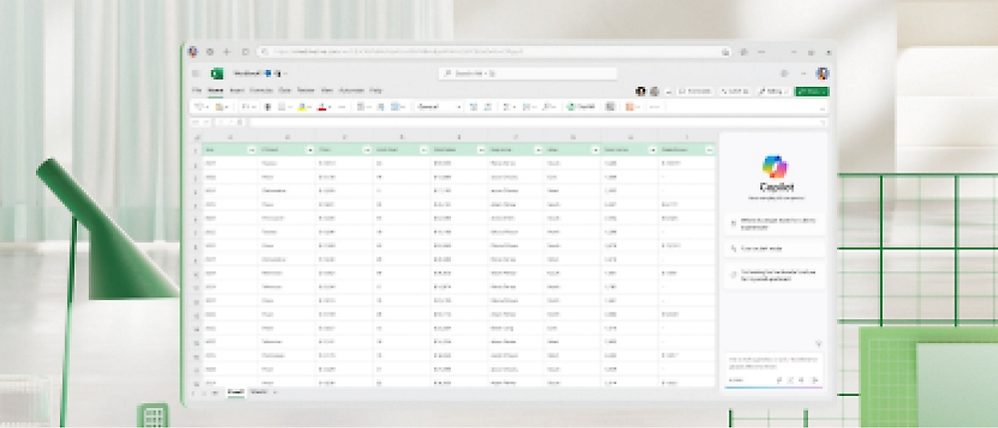
Microsoft Excel spreadsheet open on a laptop screen
Excel on the desktop: the same workbook the sales lead already keeps, now fed by the CRM. Source: www.microsoft.com ↗
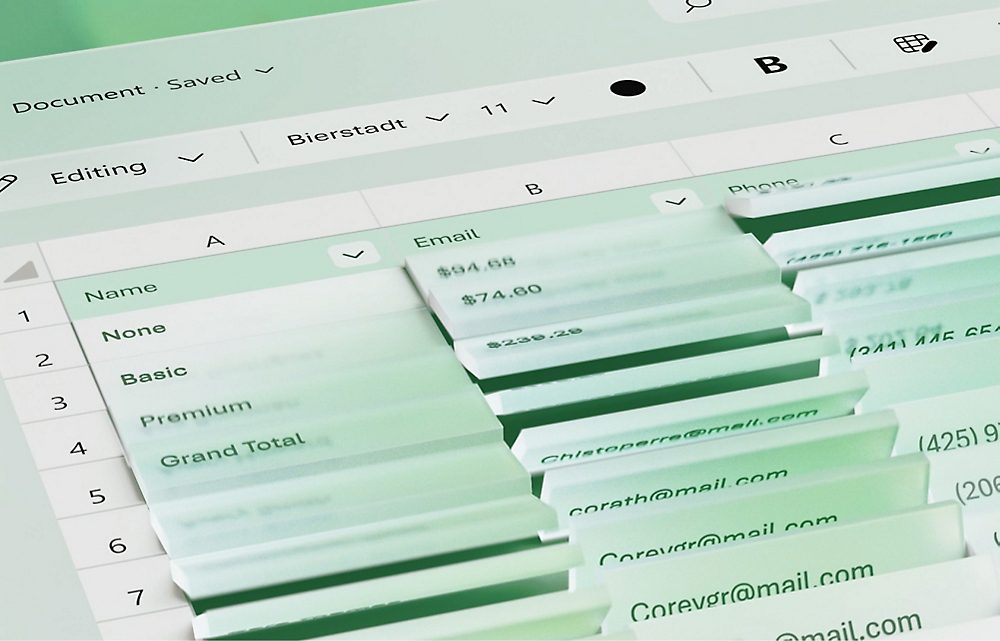
Close-up of Excel rows with names, emails and totals
Rows with client names, contacts and amounts: this is how deals and payments from the CRM land in the workbook. Source: www.microsoft.com ↗

How to start

Three steps from a first message to work on your project.

  1. 01

    Leave a request

    Describe the task in the form — in text or by voice. Budget and timing are optional.

  2. 02

    We review and estimate

    A developer studies the brief, asks about anything unclear and sends an estimate.

  3. 03

    We start

    Once scope and price are agreed, the work begins.

or write to info@coreviaflow.space

Questions

Our workbooks are on a shared network drive in the office. Will it work?
Not from there. The connection reaches workbooks only through OneDrive or SharePoint, so the first step is to move the files into your Microsoft 365. For people in the office nothing changes visibly — the folder can be synced to their desktop and opened as before.
Will the connection break our formulas and formatting?
It writes only into the data cells and tables we agreed on and does not touch formulas, conditional formatting or charts. The usual pattern is a separate 'data' sheet the connection fills and your own summary sheets that reference it, so your layout stays untouched.
What if two people edit the same row — one in Excel, one in the CRM?
For each workbook we fix a direction during setup. Most sheets go one way, so the question does not arise. For the few that go both ways we agree a simple rule — for example, the later change wins and the earlier value is kept in a log — and the connection follows it every time.
We have Google Sheets for some things and Excel for others. Do we have to choose?
No. The two connections work side by side: the accountant's Excel and the marketing team's Google Sheet can both be linked to the same CRM, each with its own rules. What matters is that one number has one home.

Tell us what needs to be connected

Describe the task in text or a voice message. We look at your setup and reply with a plan.

Pairs with Microsoft Excel

Related integrations

Implementation · Development · Integrations →

Microsoft Excel is a trademark of its owner. CoreviaFlow is not affiliated with it unless stated otherwise. Screenshots are taken from public vendor materials; the source is shown under each one.